Creating Good ol’ Standard DLLs with VB.NET

0
Filed under .NET

Managed code (VB.net and C#) are great for a lot of things, but unfortunately, even as of VS2008, it’s still missing at least one. Standard DLL exports.

You see, way back in the olden days, virtually every DLL in Windows was written in C or assembler and exported functions via the standard DLL export table.

Then came COM and now .NET, providing much easier, object oriented export capabilities. Old style EXPORTS have been falling by the wayside ever since.

Unfortunately, if you program for Windows, eventually you’ll find yourself needing to either consume or provide exports. There’s just no way around it.

For consuming (ie simply “calling”) exported functions in a DLL, .net makes that almost trivially easy. All of the Windows API can be called in this way, simply by including the proper attributes (for VB) for the function declaration in your application. Here’s an example for the SENDMESSAGE Windows API function.

<DllImport("user32.dll", SetLastError:=True, CharSet:=CharSet.Auto)> _
Private Shared Function SendMessage(ByVal hWnd As IntPtr, ByVal Msg As UInteger, ByVal wParam As IntPtr, ByVal lParam As IntPtr) As IntPtr
End Function

The Hard Part

However, exporting functions from a .NET DLL in the standard Windows API style is not near as easy.

Why would you need to do this? The main reason is to provide hooks that other applications can call. There are many, many applications out there that require addins or plugins to export standard DLL entry points. Being unable to do this in .net means either having to write a shell in C/C++ around those entry points (doable but cumbersome), or simply not providing that functionality.

The good news is that the .NET compiler designers didn’t completely forget about such down-to-the-metal tidbits as this. The bad news is that they didn’t provide any syntactic sugar to make it straightforward either.

Emilio Reale posted an excellent article on CodeProject that discusses the dirty IL (Intermediate Language in .net speak) mechanics of how to:

  1. compile your .net DLL
  2. disassembly it with ILDASM to IL source code.
  3. find the necessary bits in the disassembled output and what to change them to
  4. reassembly the IL source using ILASM into a DLL with the proper functions exported.

All fine and dandy till you look at what’s required. Needless to say, it’s an amazingly involved process to perform manually.

Fortunately, another CodeProject contributor tackled this problem and posted this article. In it, he presents a small utility and attribute definition dll that allows you to export a function (almost ANY function) from a .NET DLL simply by applying an attribute to it, like so:

<ExportDllAttribute.ExportDll("MyFunction", _
System.Runtime.InteropServices.CallingConvention.Cdecl)> _
Public Shared Sub EntryPoint_MyFunction()
     ...my code goes here....
End Sub

and then running the utility on the compiled DLL, which automates the above tasks.

It takes a little work to get things set up, but in the end, it worked flawlessly for me. Within just a few hours, I’d put together the shell of a plugin for an application that I’d had reservations about writing plugins for, simply because it looked like I’d have to do so in C++.

Now, the whole plugin is done, it’s all in VB.net (my language of preference currently), it’s a single DLL with no dependencies (other than the .net runtime <g>), and it can be deployed by simply copying it into a folder.

Can’t get better than that!

507 Mechanical Movements

0
Filed under Hardware, Misc

   image

Just came across this excellent little book. Originally published in 1868, it’s a compendium of just about every sort of mechanical means of transferring one type of motion to another than you can think of. Lots of illustrations. Makes a great reference, and the best part, it’s available free online in a djvu version. It’s a 75mb download, because the book has just been scanned in (even the text), so it’s not really searchable.

But who cares?

If you’re into steampunk in any way at all, this is a must have reference book.

As a side note, while the DJVU format and viewer is quite nice, I preferred a PDF version.

It took some effort, because, when I tried to convert it (using the PRINT function from DJVU into a PDF printer), I kept getting errors about the Courier font not being found (which it most definitely IS installed on my machine).

After some fiddling, I ended up being able to “print” it to the “Office Document Image Writer” printer driver. I then loaded that file up into the Office Document Image Viewer, and printed to the PDF printer from there.

An Interesting Use of Generics

0
Filed under .NET, VB Feng Shui

I was working on some validation logic today, and was getting heavily into generics in several classes, when I stumbled across an application of generics that I hadn’t see before.

Take the following sample code (granted, it’s trivial, but it should get the idea :

Public Class Form1
    Private Sub Form1_Load(ByVal sender As Object, ByVal e As System.EventArgs) Handles Me.Load

        Dim s As String = "Testing"
        GenericTest(s)

        Dim i As Integer = 5
        GenericTest(i)

        Dim f As Single = 10.7
        GenericTest(f)
    End Sub
End Class


Public Module Generics
    Public Sub GenericTest(Of t)(ByVal Variable As t)
        Debug.Print(Variable.ToString)
    End Sub
End Module

Notice that the GenericTest function is early bound directly to 3 different variable types due to the use of generics. Just like using object type variables but without some of the stigma <g>.

Also note that GenericTest is defined in a module. I’d only seen generics as a way of defining classes before, never just a single function, and certainly not a function in a module.

Anyway, this may be old hat for many VB.net people, but I found it interesting, at the least. Not exactly sure how I might leverage it at this point, but it’s always good to have things like this in your toolbox.

Getting Rid of the Bogus Warnings in MSBuild Projects

0
Filed under MSBuild, Troubleshooting

If you’ve ever loaded up an MSBuild project in VS, you have likely seen some warning messages in the Error List window, essentially saying that either the first item in a custom ItemGroup is invalid or the first Property in a custom PropertyGroup is invalid.

The problem is that the MSBuild designers wanted to provide a schema to you’d get some nice intellisense functions when editing a proj file, but, they had to allow for custom properties and items because, well, that’s what MSBuild is all about, after all!

So, those custom elements by definition, can’t be included in the generic schema and, bingo, validation warnings.

The warnings don’t actually harm anything and MSBuild effectively ignores them, so one solution is to do just that. Ignore all those new warnings in your Errors window. That’s even what MS recommends <sigh>

For me, though, ANYTHING in that errors window is a red flag.

Getting that Nice, Clean Errors Window

After digging around, it turns out there’s essentially 2 options to get rid of those warnings.

  1. Edit the Microsoft.Build.xsd file and include ALL the custom Property and Item names you might be using
  2. Or tell VS to not validate the proj file against any schema.

I can’t imagine bothering to try to keep that xsd file up to date constantly as I change proj files, so that option was out.

Fortunately, telling VS not to validate the project file is relatively easy, and pretty easy to undo as well.

First, open the proj file in Visual Studio (if it’s an actual VBPROJ or CSPROJ file, you’ll need to unload the project first, then right click on it again and select Edit Project).

Click in the project editing window, then in the Properties box, Click on the Ellipse button to change the schemas property.

image

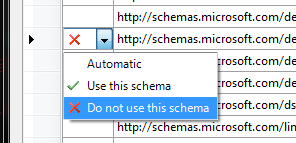
You should see this (though, the red Xs will be green checks):

image

When you get the dialog showing all the schemas against which the file is validated, select each one and choose “Do not use this schema”

image

Click ok and repeat for any other PROJ files you need to handle this way.

When done, you should no longer see any validation warnings in the error window.

Unfortunately, this also means that the proj file won’t be pre-validated at all anymore and you won’t get any intellisense anymore. But, really, once you’ve got your proj file setup, you shouldn’t be needing to edit it much.

And if you really need to, just reverse the above process to turn the schema validation back on.

TFS Build Node Shows a Red X

1
Filed under Uncategorized

image

The screenshot says it all. Why was my Build node in TFS suddenly x’d out? Completely dead.

Oddly, the queries, work items, source explorer, etc. all worked fine.

But I could no longer browse or view the status of builds.

A coworker pointed me to this post, which discussed several possible solutions.

Eventually, I was able to get things working fairly easily by:

  1. Backing up my entire Visual Studio settings collection (look in the Tools Menu, Import and Export Settings).
  2. Running devenv /resetuserdata (I had to run this directly from it’s folder, C:\Program Files\Microsoft Visual Studio 9.0\Common7\IDE because I’ve never put that in my PATH).
  3. Then restoring my saved settings except for the TFS settings section:

image

Once it finished, presto, my Build node was operational again.

Installing SQL Express 2008 Silently

0
Filed under Installations, SQL

I was recently upgrading an app from shipping SQL Express 2005 to 2008 and ran into a few surprises.

First, the command lines for the two installers are about as different as you can get.

The good news: The command line to extract files from the Self Extracting archive remains the same.

So, for SQL 2005 Express, you use this:

SQLEXPR32.EXE /Q /X:”{path to extract all SQL Installer files to}”

and for 2008 you use this

SQLEXPR_x86_ENU.EXE /Q /X:”{path to extract all SQL Installer files to}”

Typically, your install will drop the SQLEXPR32.EXE or SQLEXPR_x86_ENU.EXE files somewhere during the install, and then execute the above command line to extract all the necessary files to install SQL Express.

Then, you’ll use the command line discussed below to actually install SQL Express.

And finally, you’ll clean things up by deleting the EXE file above and all the extracted files used for the install.

The Bad News

Unfortunately, once you get the installation extracted, the command line to actually perform the installation is completely different.

For 2008, there are a huge number of command line parameters. Luckily, not all of them need to be specified to perform an unattended, nested install (ie an install of SQL Express 2008 from your own install). See here for a complete list of all the command line parameters available.

Obviously, your needs are going to dictate what options you have to specify. In my case, I needed a very bare bones installation, no fulltext search, reporting services, etc, and definitely no network support; this instance of SQL Express is intended to be accessed ONLY from the machine onto which it’s installed.

Given that, the command line is (all on one line):

{path to the SQL installation fileset you extracted above}setup.exe
/INSTANCEID=[SQLINSTANCENAME]
/ACTION=Install
/INDICATEPROGRESS=True
/HIDECONSOLE
/FEATURES=SQLENGINE
/QS
/INDICATEPROGRESS=False
/INSTANCENAME=[SQLINSTANCENAME]
/AGTSVCSTARTUPTYPE=Manual
/ISSVCSTARTUPTYPE=Automatic
/ISSVCACCOUNT=”NT AUTHORITY\NetworkService”
/ASSVCSTARTUPTYPE=Automatic
/SQLSVCSTARTUPTYPE=Automatic
/SQLSVCACCOUNT=”NT AUTHORITY\SYSTEM”
/SECURITYMODE=[SECURITYMODE]
/SAPWD=[SAPWD]
/ADDCURRENTUSERASSQLADMIN=True
/TCPENABLED=0
/NPENABLED=0
/BROWSERSVCSTARTUPTYPE=Disabled
/RSSVCSTARTUPTYPE=Disabled
/RSINSTALLMODE=FilesOnlyMode

Now, granted, that’s one gargantuan command line! Remember, the whole thing is executed as a single command. I’ve just put line breaks in so it’s readable. Also, keep in mind that you CAN specify all these parameters in a “response file” and then just pass it to the Setup.exe via the /CONFIGURATIONFILE parameter, like this:

SETUP.EXE /CONFIGURATIONFILE=”myresponsefile.rsp”

But, that requires creating a separate text file, and potentially deleting or dealing with it afterward, so the command line route tends to work better for nested installations.

The key parameters to be concerned with are:

ACTION This has to be install.

INDICATEPROGRESS If the console window is shown during the install, this will cause a very verbose log of what is happening to be echoed to the console window as well as the install log file. If you hid the console window, this parameter doesn’t appear to have any effect.

QS This stands for Quiet Simple. In other words, the install will show a progress box but no other ui to the user. And no prompting.

FEATURES Determines what elements of SQL Express you want installed. Review the help page above for options, but the main thing to install is SQLENGINE.

HIDECONSOLE Very important. Without this switch, you’ll see a DOS box console window open up during the install. Very disconcerting and not even remotely appropriate for a user facing installation.

INSTANCEID and INSTANCENAME Usually, this should be SQLEXPRESS, though you may want to use a non-standard instance name in some cases.

SECURITYMODE and SAPWD You must provide a System Admin Password (the SAPWD) if you set SECURITYMODE to SQL. Also, keep in my that there may be group security policies in place on the machine that regulate the strength of the password (in other words, the SA password you choose, or that you allow your installer to choose, may need to be a certain length, contains numbers AND letters, etc).

TCPENABLED and NPENABLED These options enable or disable support network connections (TCP or Named Pipes). A 0 disables them, which is generally a good idea unless you have a reason to allow network connections into this SQL Express instance. In those cases, it’s usually best to require the installer to install SQL separately.

ADDCURRENTUSERASSQLADMIN This may or may not be appropriate depending on who is likely to be installing your package.

SQLSVCACCOUNT Actually all of the *SVCACCOUNT” options. These control the domain credentials to use for the various SQL Express services that are installed. You would either need to use the local SYSTEM account, as my example shows, or you’d need to prompt the user during the install to get the required domain login name and password. From a simplicity standpoint, using the local SYSTEM account is the most straightforward. But how you assign service account credentials will really depend on the app you’re installing.

So there you have it. Not hard, but not the same as SQL 2005 either.

DataContractSerializer is Not Necessarily Wonderful

0
Filed under .NET, VB Feng Shui, XML

Serializing objects in .NET is surprisingly easy, and there are a number of different ways to go about the process.

One method that was recently brought to my attention is the DataContractSerializer.

To use it, you’ll need to:

Imports System.Runtime.Serialization

Then create an new instance of a DataContractSerializer and a stream and finally, use the Serializer object to write a serialized version of some other object to the stream. I won’t delve into that code here, there’s plenty of examples on the web; even the Microsoft Help page for that object has a decent example.

But what you won’t find mentioned is how incredibly brittle the serializer can be.

First off, it doesn’t round trip the serialized XML, at least not completely. Say you serialize an object to an XML file, then EDIT that file and add comments. If you then deserialize and reserialize the object, you loose all your comments.

While this is somewhat understandable, it is rather unfortunate. Too bad that’s only the lesser of the problems you’ll face.

Another issue is one that plagues XML in general. It’s CASE SENSITIVE. This makes hand editing the files tricky at best. Now, I know a lot of you might say “Jeez, stop hand editing your XML!” but, let’s be realistic. Sometimes, that’s just flat the fastest way to deal with certain issues.

But the real stumper for me was when I recently discovered that the DataContractSerializer is highly dependent on the ORDER of the XML elements in the serialized XML! That’s right, get elements out of the order that the serializer expects them in (and yet still have perfectly legal and reasonable XML) and the serializer fails. But what’s worse is that it fails silently. It just simply fails to deserialize certain property values if their xml elements aren’t in the “proper” order (which happens to be alphabetic, but still, XML should not be order dependent).

There’s a short write up on it here, but even the author, Aarron Skonnard, doesn’t comment on the fact that if elements are out of order, they won’t deserialize properly.

From what I’ve read, that order dependency is partly why the DataContractSerializer is up to 10% faster than some other serialization techniques. And, if you know that your serialized objects will ONLY ever be touched by code that is intended to work with them, that’s probably ok.

But it’s something to be very aware of if you intend on the serialized XML being visible to (or editable by) actual people.

Finding the True File Location of an Executing .NET DLL

0
Filed under .NET, VB Feng Shui

image Say you’ve written a .NET DLL and you need to know from what folder that DLL was loaded (so you can find resources, config files, whatever).

There are any number of ways to skin that cat, but unfortunately, most won’t work in the general case, but only under certain special circumstances.

Matthew Rowan does a really good job of explaining the differences here, so I’m not going to repeat his post, but the short version of the story is, it takes code that looks like this:

Dim assemblyUri As Uri = New Uri(System.IO.Path.GetDirectoryName(System.Reflection.Assembly.GetExecutingAssembly().GetName().CodeBase))
Return assemblyUri.LocalPath

Note that this is the VB version of Matthew’s clip. There a a number of other methods, but they all seem to return bogus results under various conditions.

Alternatives to Connecting to Cisco 3000 VPN

0
Filed under Utilities

image The Cisco VPN client has issues, let’s face it.

I’ve blogged about Cisco before (and here). When it works, it works just fine.

The problem is, quite often, it doesn’t work. And it’s really compounded if you’re using any app that creates and destroys network interfaces (VMWare is one such app, but there are many others). What happens, from what I’ve discerned online, is that the Cisco VPN Client doesn’t deal with network interfaces moving around and being changed. So it just fails to connect. And once it’s failed, it’s virtually impossible to get it to connect again without a reboot.

And, at least for me, anyway, often, rebooting once isn’t enough. It’ll take two reboots before the Cisco client is happy again. Now, all this is using the Cisco 3000 VPN appliance, which is believe isn’t exactly the newest VPN solution on the block. Maybe there are newer ones out, but that’s the one that the company I’m with is using.

So… I’ve been hobbling along like this for months. I’d tried the VPNC client some time ago but could never get it to connect. VPNCFE is better, usability wise, but I couldn’t get it to connect either.

I decided yesterday to take another look at the problem, and I stumbled across the Shrew Soft VPN client. image

At first, I downloaded the latest “stable” release. But, since it didn’t import the Cisco *.pcf file (the configuration file for a particular connection), I couldn’t figure out which parts of the Cisco config to put where in the Shrew Soft config screens, so I never got it to work.

I’d almost given up when I came across a post that mentioned being able to import PCF files was added in the latest RC build.

Sure enough, back to the Shrew Soft download page and there’s a 2.1.5 RC2 download link. An uninstall and reinstall later, and I could successfully import my Cisco PCF file.

And the connection worked instantly!

So far, no problems at all. Everything works just as well as it did with the Cisco client (that is, when the Cisco Client would connect!).

The other benefit to the Shrew Soft client is that it works under 64 bit OS’s (including the upcoming Windows 7, from what I can tell). That’s something Cisco still isn’t supporting.

And best of all, it’s free!

Preventing Mic Feedback in Vista

0
Filed under Media, Troubleshooting, Vista

image (No not that kind of volume!)

Seems like such a simple thing. If I’m on Skype or in general trying to use a mic in Vista, the sounds from the mic end up projecting out the speakers.

No big deal until the volumes get loud enough that you get a feedback loop. Then, look out! Dogs and cats (and wife and children) will run screaming from the house!

I’d dealt with this problem for far too long (Skype was almost unusable) but couldn’t find anything on the web addressing the issue, at least not for Vista.

So I started poking around.

After far too much searching, I finally came across the secret room in Vista where the souls at Microsoft have stashed the hidden switch.

First, right click the speaker icon in the system tray (at the bottom right of the screen), and select Playback Devices:

image

On the next dialog, select Speakers and click properties:

image

On the next dialog, select the Levels tab

image

And make sure that little speaker icon under Input Monitor is DISABLED (like it is in the above screenshot).

If not, just click it to disable it.

This will prevent the mic input from being echoed out through the speakers, and thus prevent any kind of feedback.

Sure, it’s simple now. <g>